Overview
Assessment reports in Primalogik—including 360 Feedback, Appraisals, Check-ins, and Opinion Surveys—can include a Summary Notes section near the top of the report. This section is intended to capture key takeaways, summarize overall feedback, and provide additional context for the results.
When enabled, AI assistance may also be available to generate a draft assessment summary automatically using submitted feedback, including written comments and ratings.
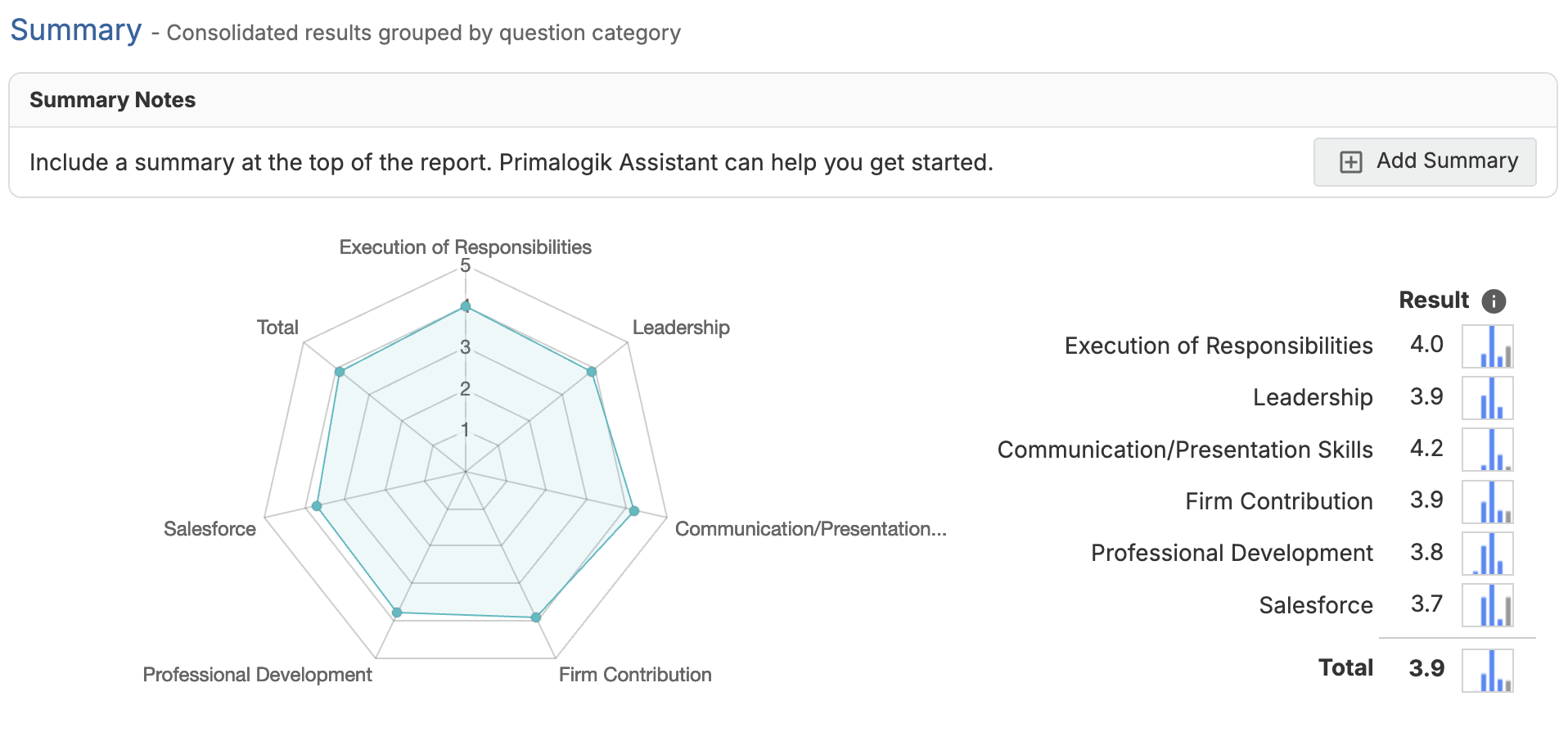
How Summary Notes Work
When Summary Notes are enabled, you can add a summary section to the report by clicking Add Summary.
- A summary area appears near the top of the report (within the Summary section).
- This area can be used to add a narrative overview, highlight key themes, and capture important insights.
Who can add and edit Summary Notes
- 360 Feedback, Appraisals, and Check-ins: Managers and HR administrators can add and edit summary notes, making it easier to collaborate on crafting the summary. The reviewee cannot edit the Summary Notes on their own review.
- Opinion Surveys: HR administrators and users with the Opinion Surveys privilege can add and edit summary notes.
If Summary Notes are disabled, the summary notes section will not appear in the report.
AI-Generated Assessment Summary
If your organization has enabled AI features in AI Settings, you can request an AI-generated assessment summary to help draft the content of the Summary Notes section.
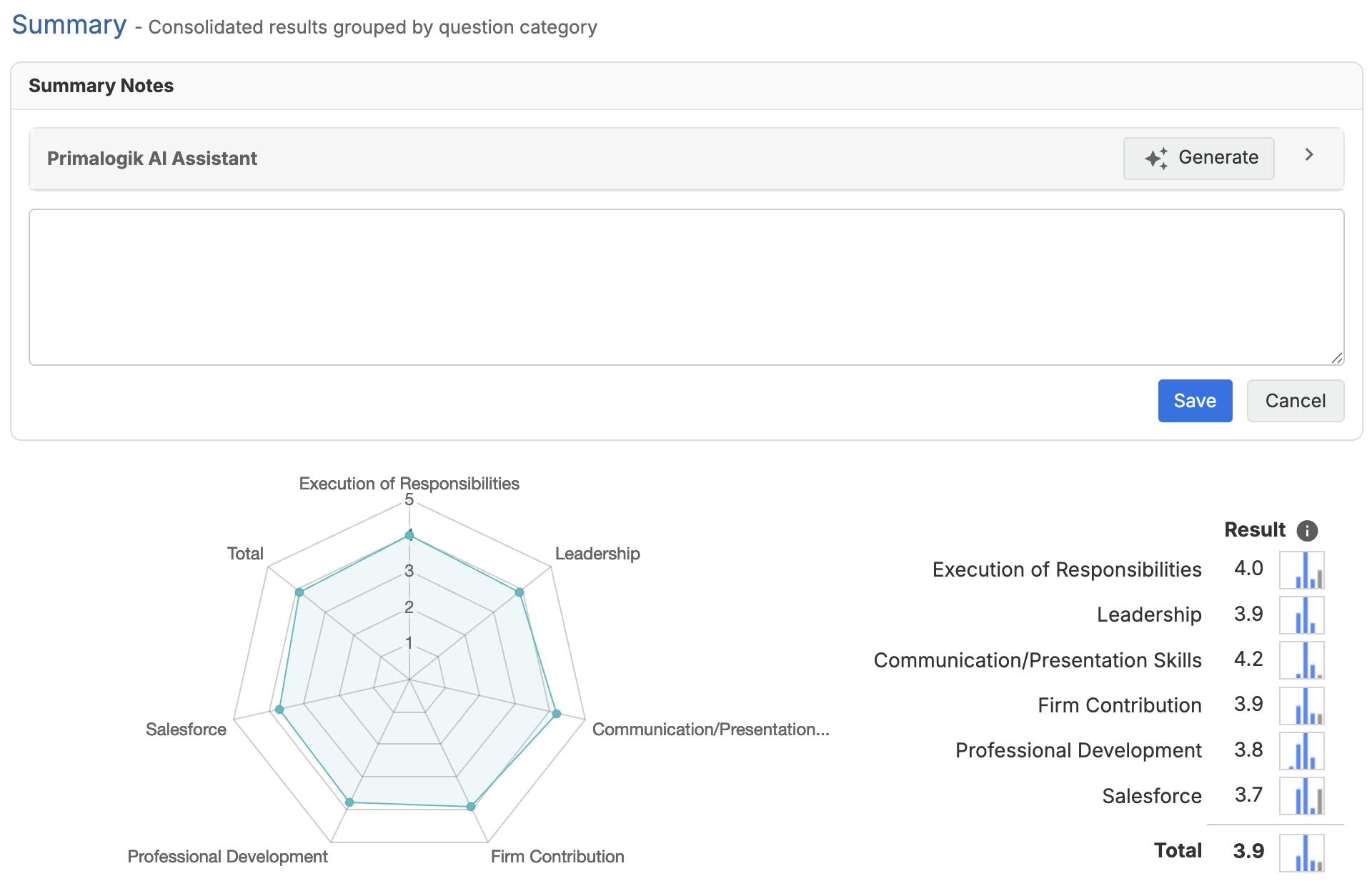
Use the "Generate" button to get an AI-generated summary. The assistant will summarize the results by evaluating all the information in the assessment report.
Then, copy the AI-generated summary into the Summary Notes field, make any edits you need, and then save it once you’re done. When you generate a summary with AI assistance, the text is provided as a starting point. You can copy the AI-generated summary into the Summary Notes field, edit it as needed, and then save your changes.
Important: Requirement
The AI-generated assessment summary feature requires the Summary Notes section to be enabled. If Summary Notes are turned off, the AI summary option will not be available.
Where to Enable Each Setting
1. Enable Summary Notes (by module): Enable this setting to add a Summary Notes section to reports for each module individually—360 Feedback, Appraisals, Check-ins, or Opinion Surveys. You can find these settings in the Appraisals and Surveys section of your configuration, under Summary Notes.
2. Enable AI-Generated Assessment Summary (AI Settings): Turn this on to allow AI assistance for generating a draft assessment summary. (Availability depends on your organization’s AI Settings.)
FAQ
What will the AI-generated summary contain?
The AI assistant will try to identify key patterns and themes in the feedback, highlighting strengths and areas for improvement. In the case of opinion surveys it will identify patterns and shared perception from different groups. Always review the generated summary to confirm it’s accurate and appropriate—AI may make assumptions or include details you may not want to share.
Can I edit the AI-generated summary?
Yes. The AI-generated summary is meant to be a starting point. You can copy it into the Summary Notes text area, then revise it as needed to match your organization’s tone, context, and what you want to include. Once you’re happy with your changes, save the notes to keep the final version.
What does the AI use to generate the summary?
The summary is generated from submitted feedback (including comments and ratings). Comments hidden using the Edit Response feature are not sent. If a comment is edited, the edited version is used for summarization (not the original comment).
Was this article helpful?
That’s Great!
Thank you for your feedback
Sorry! We couldn't be helpful
Thank you for your feedback
Feedback sent
We appreciate your effort and will try to fix the article