Upcoming feature - Available in Nov 2026
Goal Setting Campaigns help you organize and manage the goal-setting process across your organization. You can ask employees to create a minimum number of goals, establish due dates, and send automatic reminders to help everyone stay on track.
Campaigns can be launched for multiple employees at once or assigned to individual employees, giving you flexibility in how you manage goal setting.
What are Goal Setting Campaigns?
A Goal Setting Campaign is a structured process that asks employees to create a minimum number of goals within a specified timeframe.
With Goal Setting Campaigns, you can:
Choose participants: Launch a campaign for your entire organization, specific teams, or individual employees.
Set goal requirements: Define the minimum number of goals each employee needs to create.
Establish a timeline: Specify when employees are expected to submit their goals.
Send automatic reminders: Help employees stay on track without having to follow up manually.
Track progress: Administrators and managers can see progress across teams.
Launching a Goal Setting Campaign
Step 1: Start a new campaign
You can choose to launch the campaign for:
A group of employees: Launch a campaign for multiple employees at once. This is the most common option.
An individual employee: Launch a campaign for a single employee.
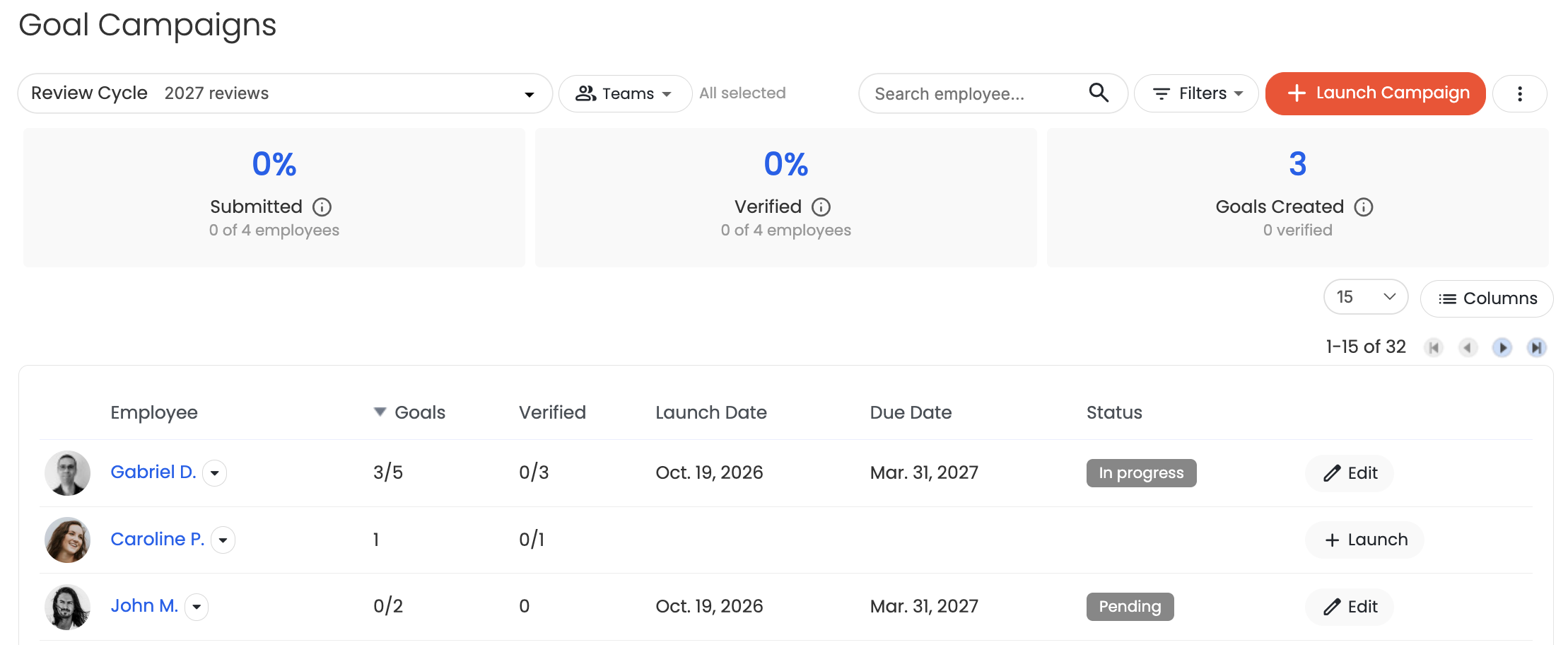
Step 2: Select participants
If you're launching a group campaign, use the Launch Campaign button on the Campaigns page, then select the employees who should participate. You can include employees from specific teams or across your entire organization.
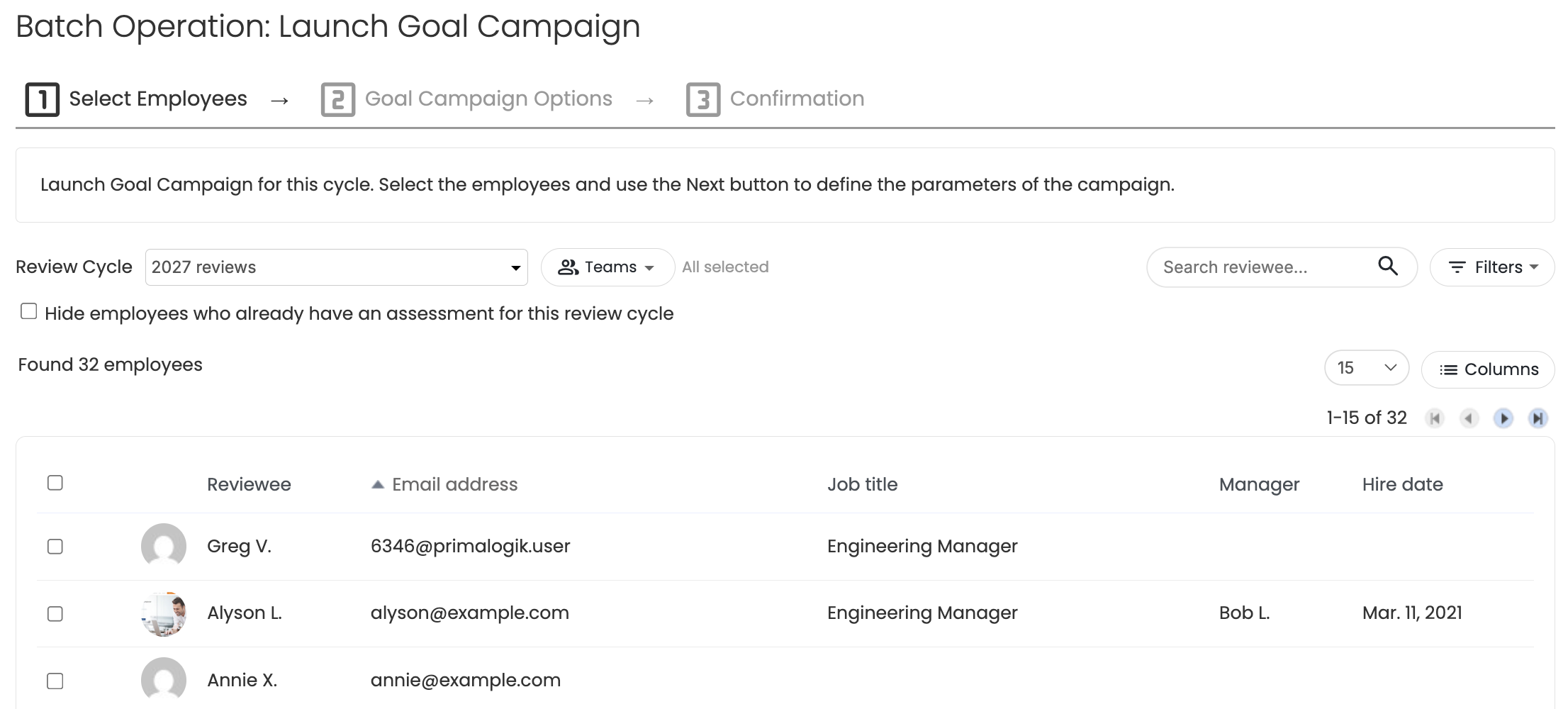
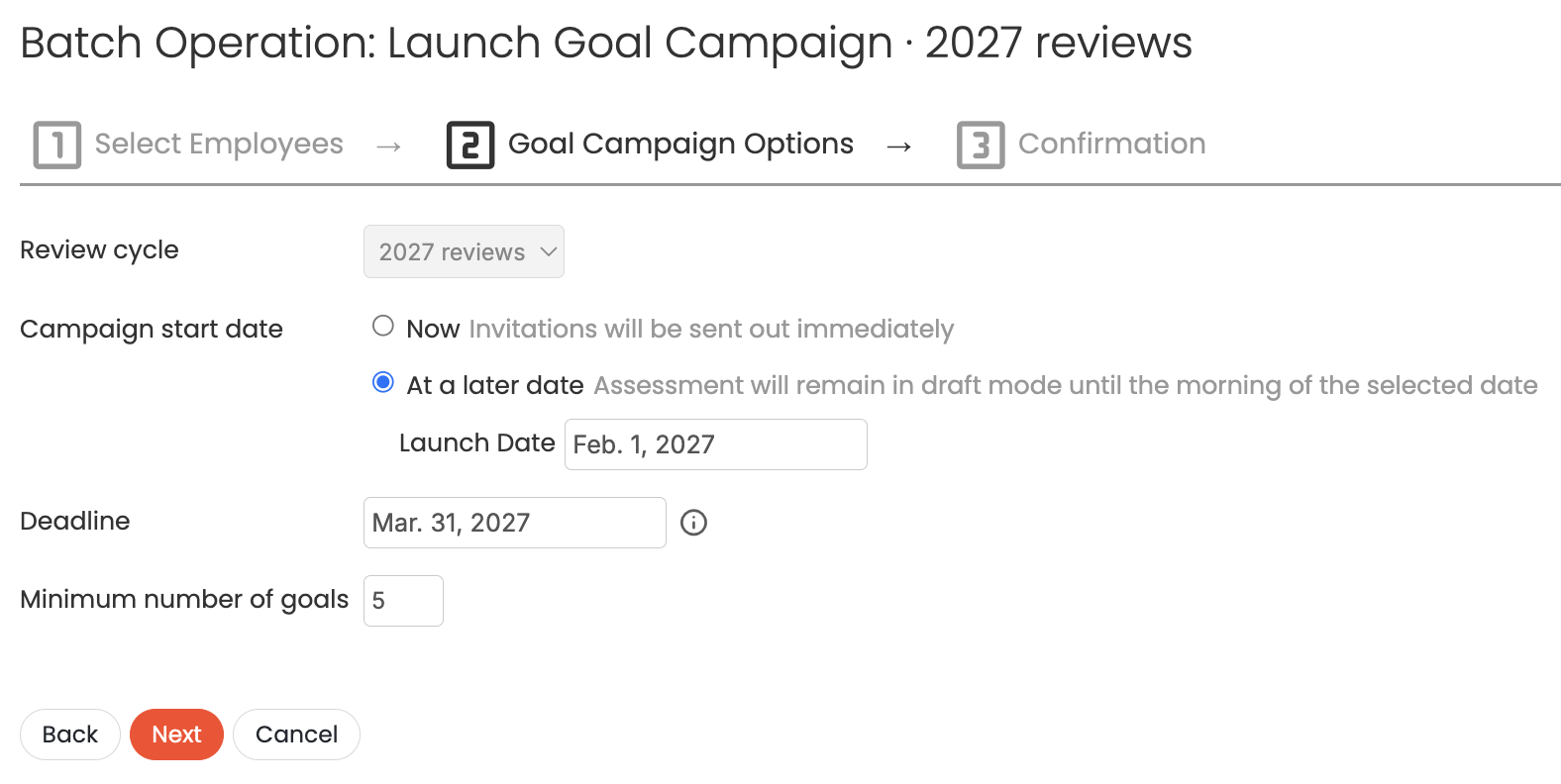
Step 3: Set the campaign options
Define the requirements for the campaign:
Launch date: Choose whether to launch the campaign immediately or schedule it for a later date.
Due date: Specify when employees are expected to complete their goal setting.
Minimum number of goals: Set the number of goals each employee is expected to create.
For example, you might ask employees to create at least five goals by March 31, 2027.
Step 4: Confirm and launch
Review your selections and launch the campaign.
Employees will receive goal-setting tasks and automatic reminders to help them complete their requirements.
What employees see
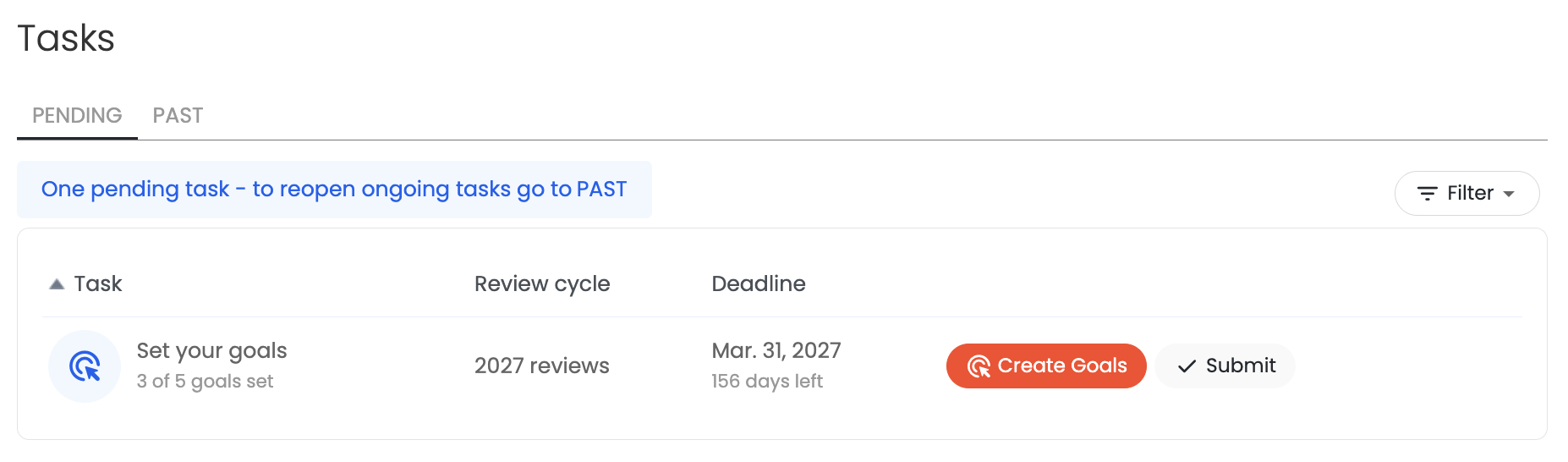
When employees are included in a Goal Setting Campaign, they'll see a task reminding them to set their goals.
The task includes:
The review cycle associated with their goals.
The minimum number of goals required.
The number of goals they've already created.
The due date for submitting their goals.
For example:
Set your goals by March 31, 2027
2027 reviews — 3 of 5 goals set
This makes it easy for employees to understand what's expected and track their progress.
Automatic reminders
Goal Setting Campaigns automatically send reminders to employees to help them complete their goal-setting requirements. These reminders direct employees to their goals, making it easy to continue where they left off.
Frequently asked questions
Can I launch a campaign for multiple employees at once?
Yes. You can launch a campaign for a group of employees, allowing you to coordinate goal setting for multiple people at the same time.
Can I launch a campaign for an individual employee?
Yes. You can also launch campaigns for individual employees.
Can I require employees to create a minimum number of goals?
Yes. You can specify the minimum number of goals employees are expected to create when launching the campaign.
Do I need to send reminders manually?
No. Reminders are sent automatically to help employees complete their goal setting.
Can I use campaigns for quarterly and annual goals?
Yes. You can launch campaigns for different review cycles, including quarterly and annual goal-setting periods.
Was this article helpful?
That’s Great!
Thank you for your feedback
Sorry! We couldn't be helpful
Thank you for your feedback
Feedback sent
We appreciate your effort and will try to fix the article